

Mastering Text and Number Conversions in Microsoft Excel: A Comprehensive Guide
Microsoft Excel is a powerful tool for data manipulation, but its effectiveness hinges on correctly formatted data. This comprehensive guide delves into various methods for changing text case, converting between text and numbers, and handling text files within Excel. We'll cover essential techniques to ensure your data is ready for analysis, reporting, and seamless integration with other applications. Whether you need to change the case of text, convert dates or numbers to text and vice-versa, or import data from a text file, this guide will equip you with the skills to efficiently manage your Excel spreadsheets.
Table
Changing Text Case in Excel
Efficiently modifying text case within your Excel spreadsheets is crucial for maintaining data consistency and improving readability. Excel offers several straightforward methods for achieving this, simplifying your workflow and enhancing the overall presentation of your data. This section will explore the common techniques and offer practical advice for handling different case conversion scenarios.
Using the UPPER, LOWER, and PROPER Functions
Excel's built-in functions provide a powerful and efficient way to change text case. The UPPER function converts all text to uppercase, LOWER converts to lowercase, and PROPER capitalizes the first letter of each word. For example, if cell A1 contains excel spreadsheet, =UPPER(A1) will return EXCEL SPREADSHEET, =LOWER(A1) will return excel spreadsheet, and =PROPER(A1) will return Excel Spreadsheet. This method is ideal for quick and simple case conversions across numerous cells, enhancing data uniformity with minimal effort. These functions are easily incorporated into formulas and can be applied to entire columns or ranges using simple drag-and-drop operations, significantly increasing productivity. Understanding these basic functions is the cornerstone of efficient text manipulation in Excel.
Leveraging the Find and Replace Feature for Case-Specific Changes
Excel's Find and Replace functionality extends beyond simple text searches. By utilizing the Match case option, you can specifically target and replace text based on its casing. This granular control is especially useful for making selective changes, perhaps replacing only uppercase instances of a specific word while leaving lowercase instances untouched. This powerful feature allows for targeted manipulation of data ensuring data integrity while performing modifications. This approach is invaluable when dealing with complex datasets requiring precise case-sensitive alterations, avoiding accidental changes to other data points.
Using VBA Macros for Complex Case Conversions
For more complex scenarios requiring custom case conversions or automation, Visual Basic for Applications (VBA) macros provide a flexible solution. VBA allows you to write custom code to perform any case conversion you need, including more intricate transformations beyond the capabilities of the basic functions. This approach empowers users to tailor the case conversion process to suit their specific needs. This functionality greatly increases automation capabilities for high-volume data processing, simplifying complex tasks and reducing manual intervention. VBA coding allows sophisticated manipulation of text data within Excel, improving efficiency for repetitive or intricate case adjustments.
Combining Functions for Advanced Case Control
Combining Excels functions can lead to advanced case control. For instance, you could use LEFT and UPPER together to capitalize only the first letter of a cells content or use MID and LOWER to lowercase specific parts of the string while leaving the rest as they are. The flexibility to combine functions provides a wealth of customization options, ensuring the user can finely tune the text case conversion to meet specific data management needs and improve the clarity and consistency of data representation.
Converting Text to Numbers in Excel
Frequently, data imported into Excel might represent numbers as text, hindering calculations and analyses. This section details efficient methods for converting text that represents numbers into their numerical counterparts, allowing for accurate computations and data analysis. Understanding these methods is fundamental for maintaining data integrity and enabling the full functionality of Excel's mathematical capabilities.
The Text to Columns Wizard
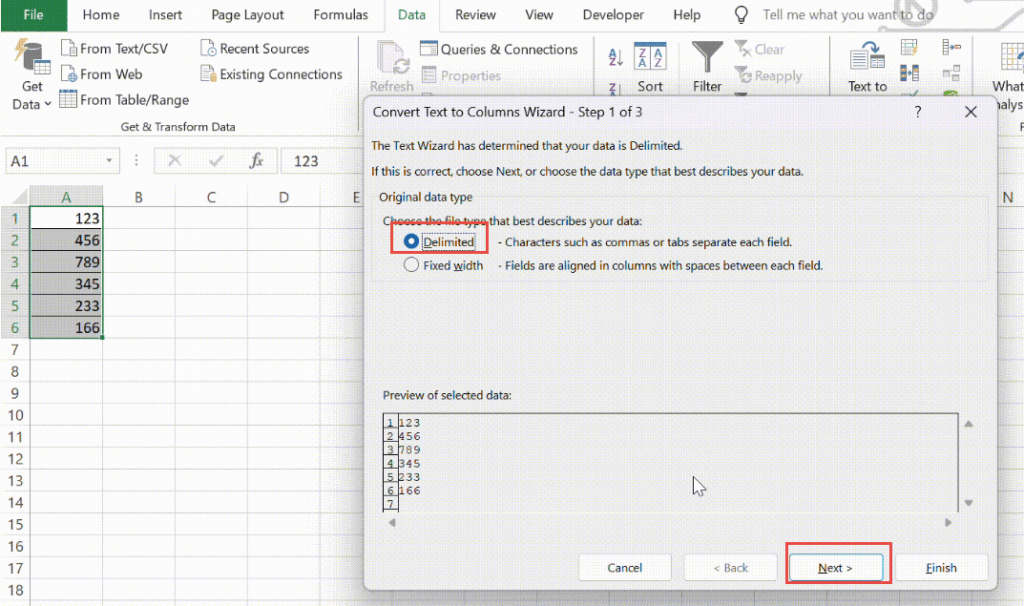
The Text to Columns wizard provides a structured approach to converting text numbers. By selecting the text column, choosing Delimited as the data type, and specifying a delimiter (if any), you can split the data into individual cells. This method allows for effective handling of data stored as text strings, where individual numerical entries are separated by a consistent character or spacing. Subsequently, formatting the new cells as numbers completes the conversion, preparing the data for numerical operations. This is a highly efficient method for dealing with large datasets with text-represented numbers, ensuring accurate numerical analysis.
The VALUE Function
The VALUE function directly converts text representations of numbers into numerical values. Simply entering =VALUE(A1) (assuming the text number is in cell A1) will perform the conversion. This is an efficient approach for individual cell conversions, particularly when combined with other formulas for automated processing. This streamlined conversion simplifies data manipulation, facilitating straightforward calculations and ensuring consistency in numerical data handling within your spreadsheets. Its simplicity and speed make it ideal for quick corrections and bulk data operations, maximizing your efficiency and reducing errors.
Multiplying by 1
A simple yet surprisingly effective technique involves multiplying the text-represented numbers by 1. Excel automatically attempts a type conversion during this operation, converting text numbers to their numerical equivalents. This method is particularly useful for quick and easy conversions, adding a layer of efficiency to spreadsheet management. It bypasses more complex functions, providing an immediate conversion and simplifying the modification process. This straightforward approach streamlines workflows and saves time, particularly for users familiar with basic Excel operations.
Addressing Errors During Conversion
It's crucial to handle potential errors. If a cell contains text that cannot be converted to a number (e.g., abc), the VALUE function will return a #VALUE! error. To handle these, you can use the IFERROR function to catch and manage these errors, replacing them with a default value (like 0 or an empty string) or using error handling methods to minimize disruption to data analysis. Implementing error handling ensures data integrity and enables more robust data processing, minimizing the impact of erroneous data entries. This approach strengthens the reliability of the entire data analysis process by providing error mitigation strategies.
Importing and Converting Text Files
Frequently, you may need to import data from text files (.txt, .csv, etc.) into Excel. This section outlines methods to import and convert such data efficiently, addressing common formatting challenges and ensuring the smooth integration of external data into your spreadsheets. Understanding the various import methods is critical for handling different data structures and managing data from diverse sources.
The Get External Data Feature
Excels Get External Data feature simplifies the import process. By navigating to Data -> Get External Data -> From Text, you can select your text file and choose a delimiter (like commas or tabs) to define how the data is structured. This feature enables the importation of data from diverse sources and simplifies data integration. Following the import, you might need to perform further formatting to adjust data types (e.g., converting text numbers to actual numbers) depending on the text files structure. This is the most common and user-friendly method for importing and managing external data, offering a standardized import process for diverse file types.
Using the Power Query Editor
For more advanced data manipulation during import, Power Query Editor (available in Excel 2010 and later versions) provides a powerful visual interface. Power Query allows you to perform various transformations—such as data cleaning, filtering, and data type conversions—during the import process, streamlining the handling of complex text files. This method offers advanced data transformation capabilities, handling data cleaning and conversion tasks directly during importation, allowing for more sophisticated data management procedures. The robust functionality of the Power Query Editor allows for comprehensive data transformations and provides the opportunity to manage the complete data transformation and integration workflow. It offers the ability to handle complex structures, multiple data types and intricate data cleaning operations.
Scripting with VBA
For highly customized imports and large-scale automation, VBA scripting provides the most flexible solution. VBA scripts can automate the entire import and conversion process, handling specific formatting requirements and data transformations unique to your data source. This capability allows for custom solutions for tailored importation needs, addressing any specific formatting challenges and unique data structures. The automated nature of the scripting approach enhances efficiency and reduces manual effort, particularly when dealing with repetitive tasks and large volumes of external data. This tailored approach provides a solution for complex scenarios requiring customized data transformation and integration.
Handling Different Delimiters
Text files use delimiters (commas, tabs, semicolons, etc.) to separate data. When importing, selecting the correct delimiter is crucial for accurate data organization. If the delimiter isn't correctly identified, the data might be improperly grouped, leading to analysis errors. Using the appropriate delimiter is critical to the integrity of imported data. This precise identification ensures that data is properly separated and organized, providing a foundation for meaningful data analysis. Understanding the various delimiters and their proper usage is an essential skill for effective data import and management processes.
This guide provides a comprehensive overview of various techniques for managing text and numbers in Excel, encompassing case conversion, number-text conversions, and text file imports. Mastering these skills will significantly enhance your data management capabilities within Excel.
This video might interest you: give it a watch
Mastering Watermarks in Excel: A Comprehensive Guide

Secure Your Excel Files: A Comprehensive Guide to Password Protection and Removal

Mastering Excel: A Comprehensive Guide to Essential Functions and Techniques

Unlocking Excel's Power: A Comprehensive Guide to Macros and More

Recover Hidden Data: Mastering Excel Column Management Techniques

Mastering Checkboxes in Microsoft Excel: A Comprehensive Guide
Leave a Reply
Contenido relacionado