

Mastering Percentage Calculations in Microsoft Excel: A Comprehensive Guide
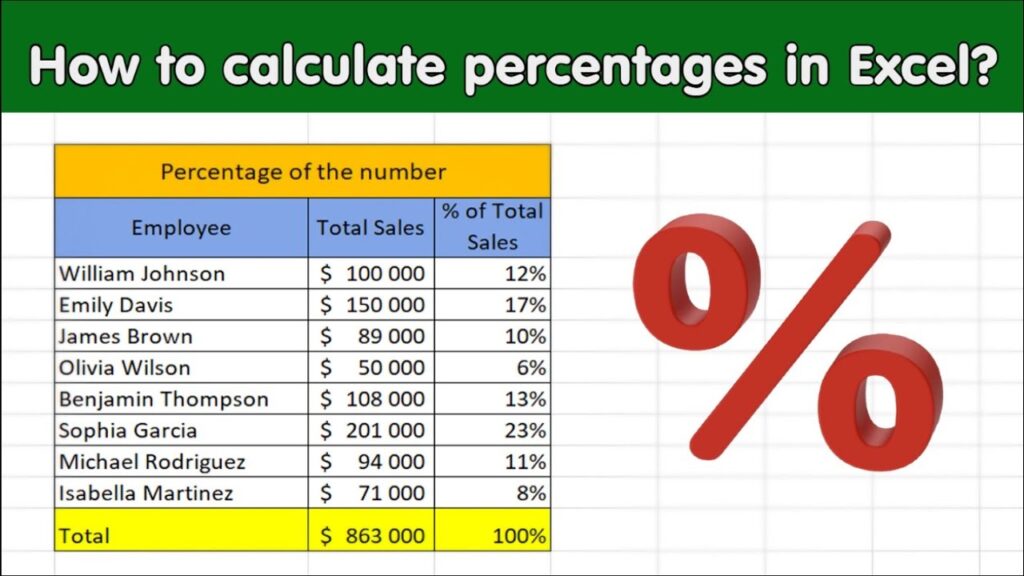
Microsoft Excel is a powerful tool for data analysis, and mastering percentage calculations is crucial for many tasks, from calculating profit margins to analyzing sales trends. This comprehensive guide will walk you through various methods for calculating percentages in Excel, covering basic percentage calculations, percentage changes, and more advanced scenarios. Whether youre asking how do I calculate percentage in excel? or how to calculate percentage of percentage in excel, this guide provides the answers and techniques you need to confidently handle any percentage-related task within your spreadsheets. We’ll cover everything from the simple how to find percentage in excel to more complex calculations like determining percentage increases and decreases, helping you become proficient in Excels powerful percentage functionalities.
Table
Calculating Basic Percentages in Excel: The Fundamentals
The simplest way to calculate a percentage in Excel involves using a basic formula. Let's say you want to find 20% of 100. The formula is straightforward: =20%100. Excel understands the asterisk () as a multiplication symbol and will automatically calculate the result (20). This answers the common query, how to calculate a percentage in excel. You can easily adapt this for different values; for example, to calculate 15% of 500, the formula would be =15%*500. This foundational understanding forms the basis for many more complex percentage calculations within Excel, answering queries such as how to compute the percentage in excel and how can i calculate percentage in excel.
Calculating Percentage of a Total
Frequently, you need to determine the percentage of a number relative to a total. For instance, if you sold 30 items out of a total of 100, you'd use the formula =30/100*100% to find the percentage of sales. The result, 30%, is obtained by dividing the number of items sold by the total number of items and then multiplying by 100%. This approach addresses questions like how do i calculate percentage on excel and how to get percentage in excel. Remember to format the cell as a percentage to display the result correctly; otherwise, you may see a decimal value instead.
Using Cell References for Dynamic Calculations
Instead of directly inputting numbers, you can utilize cell references for more dynamic percentage calculations. Let's imagine cell A1 contains the value 30 (items sold) and cell B1 contains 100 (total items). The formula becomes =A1/B1. Excel will automatically substitute the values from the referenced cells, resulting in 0.3. Formatting the cell as a percentage will then display 30%. This method is incredibly useful because if you alter the values in cells A1 or B1, the percentage calculated will automatically update, answering questions like how to get excel to calculate percentages and how to calculate percentage excel.
Percentage Calculations with Multiple Cells
You can expand these principles to encompass multiple cells easily. Suppose you have sales figures in column A and total sales in cell B1. To determine the percentage of each day's sales relative to the total, you can use the formula =A2/$B$1 in cell B2, then drag it down to apply to all rows. The $ symbols make B1 an absolute reference, ensuring it stays constant even when copying the formula. This is efficient for answering how do i calculate percentages in excel when dealing with many data points. The flexibility of this system directly addresses questions like how to calculate percentage number in excel and how to calculate percentages in excel.
Finding the Percentage of an Amount
This technique resolves the query, how to calculate percentage of a number in excel. If you want to find the percentage that a specific number represents relative to another, simply divide the number by the reference amount. For instance, if you want to determine what percentage 15 is of 75, you would enter the formula =15/75, resulting in 0.2. Formatting as a percentage displays 20%. This simple calculation is essential for understanding proportions within your data.
Calculating Percentage Changes in Excel: Growth and Decline
Frequently, you need to calculate the percentage change between two numbers, which is particularly important when analysing trends and growth. This answers questions such as how do i calculate percentage change in excel and how to calculate percentage increase in excel. The basic formula for percentage change is =(New Value - Old Value)/Old Value. Let's consider a scenario where sales increased from 100 to 150. The formula would be =(150-100)/100, which results in 0.5 or 50% increase. Understanding how to employ this formula is key to interpreting data effectively. This directly answers the question how to calculate percentage difference in excel.
Calculating Percentage Increase
Calculating a percentage increase is a specific application of the percentage change formula. If your sales rose from 200 to 250, youd use the formula =(250-200)/200, resulting in a 25% increase. Excel handles negative values appropriately, providing a negative percentage if theres a decrease. This satisfies queries like how to calculate a percentage increase in excel and how to work out percentage increase in excel. It's vital to understand the context of these results; a positive result signifies growth, while a negative result indicates a decline. This is fundamental for financial analyses and trend forecasting.
Calculating Percentage Decrease
Conversely, if your sales fell from 250 to 200, the formula remains the same: =(200-250)/250, which results in -0.2 or a 20% decrease. The negative sign indicates a reduction in value. This clarifies how to address questions such as how to calculate percentage decrease in excel and how to calculate percentage change in excel. Accurate interpretation of these calculations is crucial for interpreting the significance of any observed changes in your data.
Applying Percentage Change Formulas to Cell References
As with basic percentage calculations, using cell references is crucial for efficiency and dynamic updates. If the old value is in cell A1 and the new value in cell B1, the formula becomes =(B1-A1)/A1. This simplifies the process and allows for instant recalculations if you change the values in A1 and B1. This approach efficiently addresses how to calculate a percentage difference in excel when dealing with large datasets. The automated recalculation is particularly useful when monitoring changes over time or analysing various scenarios.
Percentage Change with Multiple Data Points
For multiple data points, you can apply the formula to a whole column similarly to how we applied the basic percentage formulas before. If column A contains the old values and column B contains the new values, you can enter the formula =(B2-A2)/A2 in cell C2 and then drag it down to automatically calculate the percentage change for each data point. This method streamlines the analysis of trends across a larger data set, directly addressing the question, how to calculate percentage change on excel in a more efficient way.
Advanced Percentage Calculations in Excel: Nested Formulas and More
Beyond basic percentage calculations and percentage changes, Excel allows for more complex scenarios. This section addresses questions like how to calculate a percentage of a percentage in excel and shows how to tackle more intricate percentage-related problems.
Calculating a Percentage of a Percentage
Sometimes, you need to find a percentage of a percentage. For example, if you want to find 10% of 25% of 500, you can do it in two steps, but it can also be done with a nested formula. The steps are to first find 25% of 500 (=25%500=125), and then 10% of the resulting 125 (=10%125=12.5). A nested formula approach would be =10%(25%500). This simplifies the calculation process, answering questions like how to calculate percentage of percentage in excel. This technique is valuable in multi-stage calculations or scenarios involving discounts and markups.
Calculating Percentage Difference Between Two Percentages
To compute the percentage difference between two percentages, you apply the standard percentage change formula. If you have 20% and 25%, the calculation would be =(25%-20%)/20%, resulting in a 25% difference. Similarly, the difference between 15% and 10% is calculated as =(15%-10%)/10%, which gives a 50% difference. Remembering to maintain consistent units (percentages) is essential for accurate results. This is crucial for comparing different proportions within your data.
Using IF Statements for Conditional Percentage Calculations
Excel's IF function allows conditional calculations. You can create formulas that compute percentages differently depending on specific criteria. For example, you might apply a 10% discount if the sales value exceeds a certain threshold. An IF statement helps handle these complex situations neatly and efficiently.
Working with Multiple Criteria for Percentage Calculation
Sometimes, multiple criteria need to be considered when calculating percentages. For example, you might need to calculate the percentage of sales from a specific region and product type. Combining IF statements or using advanced functions like SUMIFS provides the functionality needed for these scenarios.
Mastering percentage calculations in Excel is a valuable skill for anyone working with data. This guide provided various methods, from basic formulas to advanced techniques, equipping you to handle a wide range of percentage-related tasks within your spreadsheets. Remember that using cell references is highly recommended for flexibility and dynamic recalculations, allowing you to efficiently manage and analyze your data.
This video might interest you: give it a watch
Recover Lost or Corrupted Excel Files: A Comprehensive Guide

Mastering Excel File Size Reduction: Practical Strategies for Smaller, Faster Spreadsheets

Mastering Watermarks in Excel: A Comprehensive Guide

Secure Your Excel Files: A Comprehensive Guide to Password Protection and Removal

Mastering Excel: A Comprehensive Guide to Essential Functions and Techniques

Unlocking Excel's Power: A Comprehensive Guide to Macros and More
Leave a Reply
Contenido relacionado