

Mastering Data Transfer: Your Comprehensive Guide to Exporting Excel Data
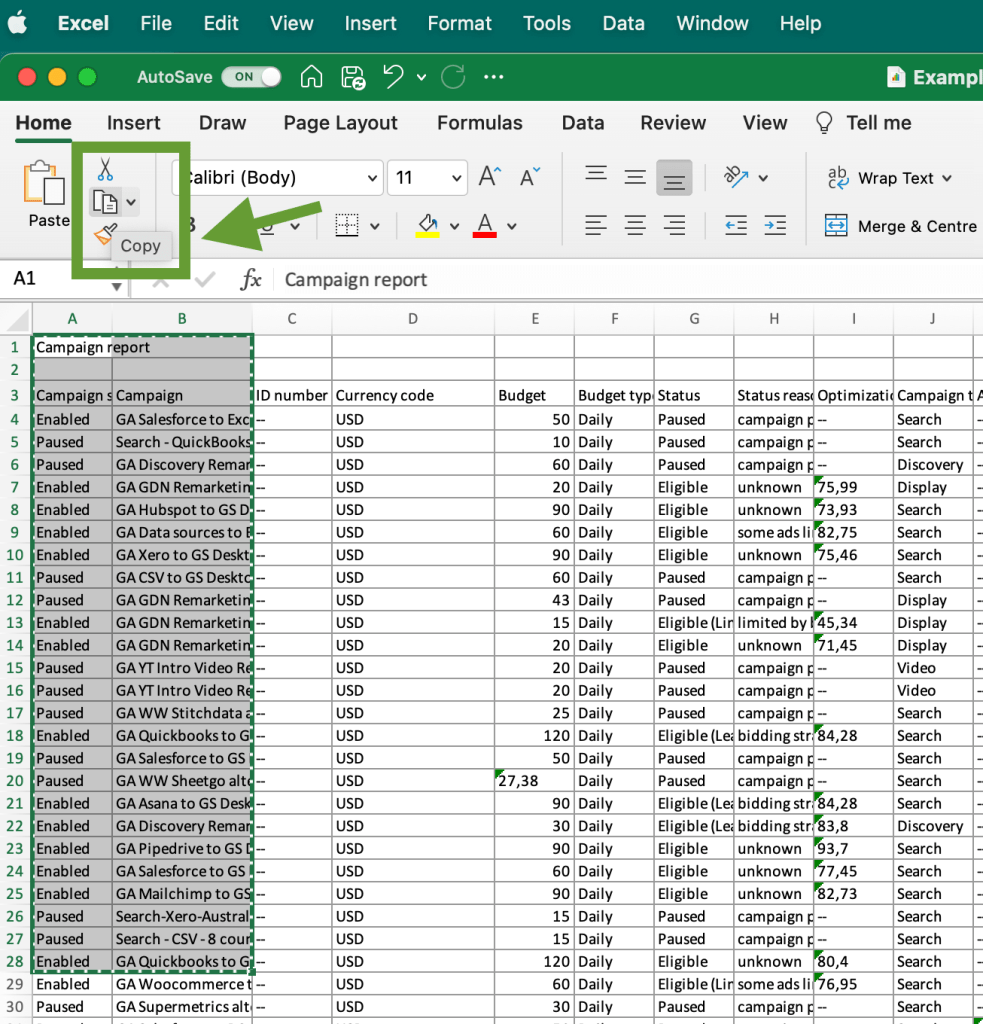
Efficiently moving data between different applications is crucial for productivity. This guide provides a comprehensive overview of exporting data from Microsoft Excel to Word, covering various data sources and scenarios. We'll explore methods for exporting various data types, including contacts, tables, charts, and entire spreadsheets, addressing common challenges and offering solutions for seamless data transfer. Whether you need to export data from Power BI, a SQL database, or even your iPhone contacts, this guide will equip you with the knowledge to streamline your workflow and ensure accurate data transmission.
Table
Exporting Excel Data to Word: A Step-by-Step Guide
The simplest method for how to export data from excel to word involves copying and pasting. Select the data in Excel, copy it (Ctrl+C or Cmd+C), then open your Word document and paste it (Ctrl+V or Cmd+V). This method works well for small datasets and simple tables. However, for larger, more complex datasets, this approach can lead to formatting issues. For example, if you have a pivot table with complex formatting, simply pasting it might not retain the formatting. Maintaining the original format and structure of your Excel data is crucial; let's explore more robust methods for achieving this goal.
Using the Paste Special Function
To overcome basic copy-paste limitations and address issues such as how do i export data from excel to word while preserving formatting, use the “Paste Special” function. After copying your Excel data, right-click in your Word document and select Paste Special. Choose Microsoft Excel Worksheet Object to embed the spreadsheet directly into Word, maintaining its original formatting, formulas, and functionality. This is ideal for larger datasets or spreadsheets needing to retain their original formatting. Remember that embedding the spreadsheet might increase the file size. Another option is to choose Text which is often ideal for exporting how to export excel data to word but less formatting is preserved. You also have the option of Picture, where your Excel data becomes an image that cannot be edited.
Converting Excel Tables to Word Tables
For cleaner integration, consider converting your Excel table to a Word table before export. In Excel, select your data, then go to the Insert tab and choose Table. This creates a structured table within your Excel sheet. Once this structured table is created, copy and paste into your Word document. In this way, you can effectively address how do i export data from excel to word. This method preserves column widths and data alignment more effectively than simply pasting text. This is particularly useful when working with numerical data or tables needing precise formatting.
Exporting Charts from Excel to Word
Visualizations are often key components of reports. Understanding how to export a chart from excel to Word is important. In Excel, select the chart, copy it (Ctrl+C or Cmd+C), then switch to your Word document and paste it (Ctrl+V or Cmd+V). You can adjust the charts size and position in Word as needed. To ensure high quality, consider pasting it as an enhanced metafile to improve resolution. If you are working with very complex charts with many data points, its a good idea to export as a high resolution image to preserve image quality in the final document. This strategy helps you efficiently address how to export a chart from excel and ensure visual clarity.
Exporting Single Sheets
If you only need to export specific parts of your Excel file, you need to know how to export 1 sheet from excel. This can be achieved by simply selecting the individual sheet and exporting it as an Excel file which can be imported into Word using the methods described above. You can also copy and paste the data from the desired sheet, using Paste Special for better control over formatting, resolving issues with how to export a sheet from excel.
Importing and Exporting Data Across Different Platforms
The ability to seamlessly move data between platforms is essential in a collaborative and interconnected environment. Knowing how do i import data into excel and effectively exporting data is paramount, especially for users navigating the various methods for sharing data between systems.
Importing and Exporting Data from Power BI
Power BI offers robust data visualization and analysis capabilities. Learning how do i export data from power bi to excel enables you to share your insights efficiently. Power BI allows direct export of tables and reports to Excel. However, the complexities surrounding how do i export data from power bi to excel, including automatically exporting data, can impact the effectiveness of your data. Direct export often preserves formatting well, but very large datasets might require adjustments or alternative export methods.
Importing and Exporting Data from SQL Databases
Efficient data management often requires interaction with relational databases. For those needing to extract information, understanding how to export a sql table to excel is critical. Many SQL clients offer direct export to Excel, allowing the selection of specific tables for export. You can also import this SQL data into Excel and then export it to word. This is crucial for sharing detailed reports derived from database analysis, managing requests for how to export a sql table to excel, and ensuring streamlined data transfer.
Importing and Exporting Contact Data
Managing contacts across various devices and platforms is another significant aspect of data transfer. If you are using an iPhone, knowing how can i export my iphone contacts to excel and how do i export my iphone contacts to excel is essential. Similarly, understanding how do i export outlook contacts to excel and how do you export outlook contacts to excel facilitates efficient contact management. These methods involve exporting the contacts in a suitable format (CSV is typical) and importing it into Excel. This capability often streamlines contact transfers, address book updates and simplifies collaboration across platforms.
Advanced Data Export Techniques and Troubleshooting
Beyond basic methods, more advanced techniques offer enhanced control and flexibility for data export.
Exporting from Other Applications
Numerous applications generate data requiring export to Excel. Knowing how to export a report from salesforce to excel, for instance, is highly relevant for sales professionals. This involves using Salesforce's export functionalities; similar processes exist for applications like Jira (how to export from jira to excel), Asana (how to export asana to excel), and others. Understanding the specific export functions of different software is vital for efficient data integration and handling different data formats.
Exporting Data with Specific Formatting
Maintaining data integrity requires attention to formatting. If you are struggling to keep formatting when exporting, methods like “Paste Special” are useful, and in some cases, exporting as a CSV file (how to export csv from excel) and then importing it into excel to maintain original data, can help you address how to export data from excel to word.
Troubleshooting Data Export Issues
Challenges may arise during data export. If data isnt transferring correctly, review the selected export options and data format. Ensuring compatibility between source and destination applications is critical. For instance, if youre transferring highly formatted data, using an embedding method might be superior to simple copy-pasting. Understanding various data export limitations ensures accurate and efficient data transfer, resolving problems in how to export data from excel.
Efficiently managing and transferring data is paramount in todays digital landscape. Mastering the techniques described here – from simple copy-pasting to leveraging Paste Special and advanced export features – empowers you to seamlessly integrate data across platforms, maintain formatting, and streamline your workflow. Whether youre transferring contact lists, financial data, or complex reports, this guide provides the necessary foundation for effective data handling. Remember to always consider the size and complexity of your data when selecting your export method to optimize efficiency and data integrity. The ability to efficiently manage and share data is a valuable skill for professionals across various industries, boosting productivity and improving decision-making.
This video might interest you: give it a watch
Mastering Bullet Points in Microsoft Excel: A Comprehensive Guide

Mastering Date Sorting and Management in Microsoft Excel

Mastering Excel Filtering: A Comprehensive Guide to Data Management

Mastering Hyperlinks in Excel: A Comprehensive Guide

Recover Lost or Corrupted Excel Files: A Comprehensive Guide

Mastering Excel File Size Reduction: Practical Strategies for Smaller, Faster Spreadsheets
Leave a Reply
Contenido relacionado