

Mastering Subtraction in Microsoft Excel: A Comprehensive Guide
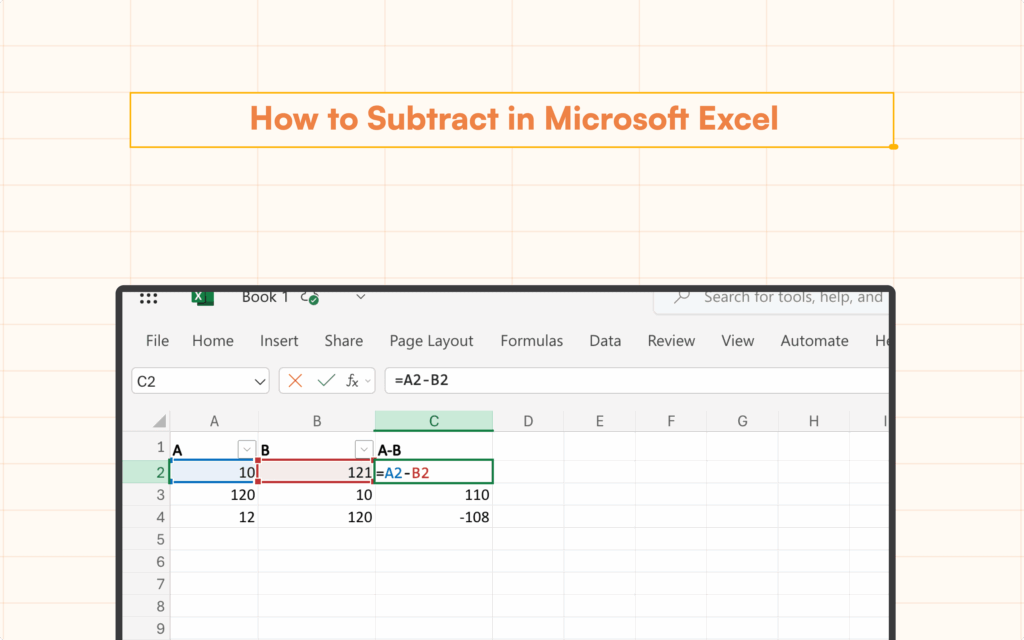
Microsoft Excel is a powerful tool for data analysis and manipulation. One of the most fundamental operations within Excel is subtraction. This comprehensive guide will delve into various techniques for performing subtraction, from simple calculations to more complex scenarios involving percentages, dates, and finding minimum values. Whether youre a beginner looking to grasp the basics of how to minus in excel or an experienced user seeking to refine your skills, this article will provide valuable insights and practical examples to help you master subtraction in Excel. Well cover everything from the simple what is the formula for minus in excel to more advanced techniques like how to do a minus sum in excel and even explore how to manage minimum values using formulas like how to set a minimum value in excel formula.
Table
Basic Subtraction in Excel: The Fundamentals
The simplest form of subtraction in Excel involves using the minus sign (-) directly within a formula. To subtract two numbers, type an equals sign (=), followed by the first number, a minus sign, and the second number. For instance, to subtract 5 from 10, you would enter the formula =10-5. This will return the result 5. This directly answers questions like how to minus in excel and how to do minus in excel. You can easily extend this to more complex expressions, for example, subtracting multiple numbers or incorporating cell references. Understanding this fundamental operation lays the groundwork for more advanced techniques.
Using Cell References for Subtraction
Instead of directly inputting numbers, you can use cell references within your formulas. For example, if you have the number 10 in cell A1 and the number 5 in cell B1, you could use the formula =A1-B1 to subtract the value in B1 from the value in A1. This approach is particularly useful when working with large datasets, as it simplifies formula creation and makes them easier to understand. This method also facilitates how to do a minus calculation in excel.
Subtracting Multiple Numbers
Excel effortlessly handles subtraction of multiple numbers. Simply chain the subtractions using the minus sign. For example, =10-5-2 will correctly calculate 10 minus 5 minus 2, giving you a result of 3. Similarly, using cell references, a formula like =A1-B1-C1 would subtract the values in cells B1 and C1 from the value in cell A1. This method directly answers the question how do you minus in excel.
Order of Operations in Subtraction Formulas
Excel follows the standard order of operations (PEMDAS/BODMAS). Parentheses are evaluated first, then exponents, followed by multiplication and division (from left to right), and finally addition and subtraction (from left to right). To ensure correct calculations, use parentheses to group operations that need to be performed before others. This aspect is crucial when understanding how to do a minus sum in excel or when dealing with more intricate formulas.
Advanced Subtraction Techniques in Excel
Beyond basic subtraction, Excel offers a range of advanced capabilities. This section will explore subtracting percentages, working with dates, and finding minimum values. These techniques are crucial for various data analysis scenarios and provide answers to questions such as how do i minus a percentage in excel and how to get the lowest number in excel.
Subtracting Percentages: Percentage Decrease Calculations
To subtract a percentage from a number, you first need to convert the percentage into a decimal. This is easily done by dividing the percentage by 100. For example, to subtract 20% from 100, you would use the formula =100-(100*0.2). This formula first calculates 20% of 100 (which is 20) and then subtracts that result from 100. This gives the correct answer of 80. Cell references can also be used, making it simple to apply this calculation across a whole column or spreadsheet. Understanding this helps answer queries like how do i minus a percentage in excel efficiently.
Subtracting Dates: Calculating Time Differences
Subtracting dates in Excel is straightforward. If you have two dates in cells, say A1 and B1, the formula =A1-B1 will return the difference between the two dates in days. This is a useful function for calculating durations or time differences. The result will be a numerical value representing the number of days. You can then format this result to display the time difference in other units like months or years, if required. This answers how to use excel to answer how to minus date in excel.
Finding Minimum Values: MIN Function
The MIN function in Excel is designed to find the lowest number in a range of cells. For example, if you want to find the minimum value within cells A1 to A10, you would use the formula =MIN(A1:A10). This function is invaluable for identifying minimum values within datasets and is relevant to questions such as how to get the lowest number in excel and how to calculate minimum in excel.
Working with Minimum Values in Formulas: Conditional Logic
You can integrate the MIN function into more complex formulas using conditional logic. This is very useful for creating formulas that only perform certain calculations if a value meets a minimum threshold. For instance, you might only want to calculate a bonus if sales exceed a minimum target. This illustrates how you can achieve practical outcomes through formula development by answering how to set a minimum value in excel formula.
Troubleshooting and Advanced Formula Applications
This section addresses common issues and explores more advanced applications of subtraction within Excel formulas. We’ll cover topics like handling negative numbers, adding minus signs, and other nuanced situations often encountered by Excel users. This section directly supports queries like how to put a minus sign in excel and how to add minus in excel.
Handling Negative Numbers
Excel handles negative numbers seamlessly. Subtracting a larger number from a smaller number will naturally result in a negative number. These are displayed with a minus sign preceding the value. For instance, if you use the formula =5-10, the result will correctly show as -5.
Adding Minus Signs Manually
You can manually add a minus sign to a number within a cell or a formula. Simply add a minus sign before the number or cell reference. For instance, =-10 will represent a negative ten. This also addresses scenarios concerning how to add minus sign in excel and how to get rid of minus sign in excel which often relates to formatting and conditional formatting.
Using the SUM Function with Negative Numbers
The SUM function can also be used to handle subtractions by including negative numbers. For instance, if you have numbers in cells A1, A2, and A3 and want to subtract A3 from the sum of A1 and A2, you could use the formula =SUM(A1,A2,-A3). This achieves the desired outcome and is helpful in understanding how do i do a minus sum in excel.
Combining Subtraction with Other Operators
Subtraction can be effectively combined with other operators (+, *, /) to build complex formulas. Remember to use parentheses to dictate the order of operations to obtain accurate results. This directly helps to clarify how to address how to plus and minus in excel efficiently. Combining operators allow for intricate data manipulation within Excel spreadsheets.
This guide provides a comprehensive overview of how to perform subtraction in Excel, covering various scenarios and addressing several commonly asked questions. By mastering these techniques, you can unlock the full potential of Excel for data analysis and manipulation, enhancing your efficiency and accuracy in numerous applications.
This video might interest you: give it a watch
Recover Lost or Corrupted Excel Files: A Comprehensive Guide

Mastering Excel File Size Reduction: Practical Strategies for Smaller, Faster Spreadsheets

Mastering Watermarks in Excel: A Comprehensive Guide

Secure Your Excel Files: A Comprehensive Guide to Password Protection and Removal

Mastering Excel: A Comprehensive Guide to Essential Functions and Techniques

Unlocking Excel's Power: A Comprehensive Guide to Macros and More
Leave a Reply
Contenido relacionado