

Mastering Excel's IF THEN Function: A Comprehensive Guide
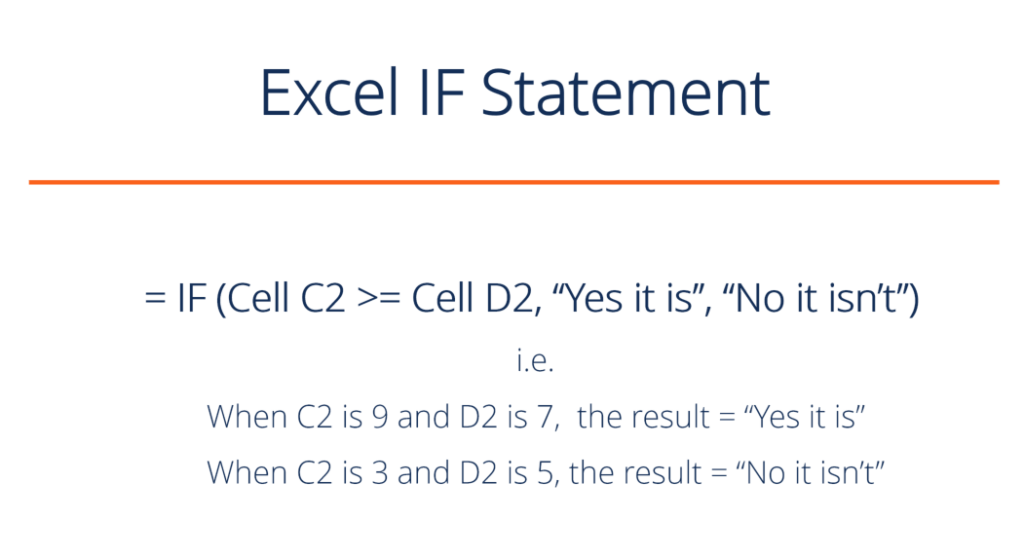
Microsoft Excels IF function is a powerful tool for conditional logic, allowing you to perform different calculations or display different results based on whether a certain condition is met. Understanding how to use this function is crucial for anyone working with spreadsheets for data analysis, reporting, or automation. This comprehensive guide will explore various aspects of using IF THEN statements in Excel, from the basic syntax to advanced techniques like nested IF statements and combining IF with other functions. Well cover how to do an IF THEN in Excel, addressing common questions like how do i do an if then statement in excel and how to use if statement in excel in detail, ensuring you gain a complete understanding of this essential Excel capability. We'll also look at practical applications, helping you to build your skills and confidence in using this versatile function to enhance your spreadsheet work.
Table
Understanding the Basics: How to Do an IF THEN in Excel
At its core, the IF function in Excel checks a condition and returns one value if the condition is TRUE and another value if its FALSE. The basic syntax is: =IF(logical_test, value_if_true, value_if_false). The logical_test is the condition youre checking (e.g., A1>10), value_if_true is the result if the condition is TRUE, and value_if_false is the result if it's FALSE. For example, =IF(A1>10, Greater than 10, Less than or equal to 10) checks if the value in cell A1 is greater than 10. If it is, it returns Greater than 10; otherwise, it returns Less than or equal to 10. This simple example directly answers queries like how to do an if then in excel and provides a foundational understanding for more complex applications. Learning how to use if statement in excel effectively starts with this fundamental structure.
Simple IF Statements: How to Do an IF Statement in Excel
Simple IF statements are ideal for straightforward conditional logic. For example, you might want to assign a Pass or Fail grade based on a test score. If the score (in cell A1) is above 50, the result is Pass; otherwise, it's Fail. The formula would be: =IF(A1>50, Pass, Fail). This clearly illustrates how to do an if statement in excel for basic evaluations, offering a quick and efficient solution for straightforward conditional tasks. Understanding this helps to address the frequent question, how do i do an if statement in excel?.
Numerical Results with IF Statements: How to Apply IF in Excel
The IF function isnt limited to text results. You can use it to perform calculations based on conditions. Lets say you want to calculate a 10% bonus if sales (in cell B1) exceed $10,000. The formula would be: =IF(B1>10000, B1*0.1, 0). This formula demonstrates how to apply if in excel to numerical values, providing a practical approach to conditional calculations. This approach addresses the query, how to apply if in excel for numerical data manipulation.
Using IF with Cell References: How to Use an IF Then Statement in Excel
Effectively using the IF function often involves referencing other cells within your spreadsheet. For instance, if you have a list of products and their prices in columns A and B, you could use an IF statement to determine whether a product (cell A1) is Product X and display its price (cell B1) if true or zero otherwise, using a formula like this: =IF(A1=Product X, B1, 0). This illustrates how to use an if then statement in excel effectively by referencing cells, providing dynamic results based on data in your spreadsheet, further clarifying how to use an if then statement in excel.
Combining IF with other functions: How to Use AND in an IF Statement Excel
The power of Excel's IF function is significantly enhanced when combined with other functions. For example, the AND function allows you to check multiple conditions simultaneously. To determine if a sale is above $10,000 AND the customer is a Preferred customer, you could use a formula like: =IF(AND(B1>10000, C1=Preferred), High Value Sale, Standard Sale) where B1 holds sales value and C1 the customer type. This demonstrates how to use and in an if statement excel, showcasing the flexibility of combining functions for complex conditional logic. This further expands your capabilities beyond a simple how to do an if then in excel approach.
Advanced Techniques: How to Do Multiple IF Statements in Excel
While single IF statements are useful, many scenarios require checking multiple conditions. This is where nested IF statements or the IFS function come in. Nested IF statements involve placing one IF statement inside another. The IFS function, available in newer versions of Excel, provides a more readable and efficient approach for handling multiple conditions. Both approaches directly address the query how to do multiple if statements in excel, and choosing between the two depends on the complexity and your Excel version.
Nested IF Statements: How Do I Do Multiple IF Statements in Excel?
Nested IF statements can become complex, but they are powerful tools for addressing scenarios requiring multiple conditions. Imagine you need to assign different discounts based on sales tiers: 0-10000 (0%), 10001-20000 (5%), 20001-30000 (10%), and above 30000 (15%). A nested IF statement can handle this; for instance: =IF(B1<=10000,0,IF(B1<=20000,B10.05,IF(B1<=30000,B10.1,B1*0.15))). This example addresses how do i do multiple if statements in excel directly, providing a clear illustration of a nested IF structure's functionality.
IFS Function: How to Combine IF Statements in Excel
The IFS function offers a cleaner alternative to deeply nested IF statements. Using our sales discount example, the IFS function would be: =IFS(B1<=10000,0,B1<=20000,B10.05,B1<=30000,B10.1,TRUE,B1*0.15). This neatly organizes the conditions and results, improving readability significantly. This clarifies how to combine if statements in excel efficiently, particularly for multiple conditions, and provides a concise alternative to nested structures. Learning how to combine if statements in excel using IFS is crucial for maintainable and easily understood spreadsheets.
OR and AND functions within Multiple IF statements: How to Combine IF and OR in Excel
You can further enhance the complexity and power of your multiple IF statements by including OR and AND functions. This allows you to build more sophisticated logic that checks for various combinations of conditions. For instance, to check if sales are over 10000 OR the customer is preferred and apply a specific calculation only in this condition, you'd use an OR function within the IF statement. Mastering these techniques provides a powerful solution to how do i do multiple if statements in excel and expands possibilities far beyond simple conditional checks. Using OR functions within IF statements provides comprehensive solutions for combining multiple conditions for efficient data analysis.
Error Handling in Multiple IF Statements: How Do IF Statements Work in Excel
When dealing with multiple IF statements, its crucial to consider error handling. If a condition isnt met, it can lead to unexpected results. The IFERROR function can help you manage these situations, providing a default value or performing a specific action in case of an error. Understanding how to handle potential errors improves the robustness of your spreadsheet operations, answering the question how do if statements work in excel in a pragmatic way. Integrating IFERROR into your multiple IF statements prevents unexpected behaviour and enhances overall data integrity.
Practical Applications and Troubleshooting: How to Do a Report in Excel
The IF function is incredibly versatile, applicable in diverse situations. From simple data validation to complex data analysis and report generation, understanding how to use IF effectively is key to efficient spreadsheet management. Addressing common issues and understanding how to apply IF to real-world scenarios are crucial aspects of mastering this function. This section will examine some common use cases and discuss troubleshooting techniques.
Creating Reports with Conditional Formatting: How to Do a True False in Excel
Conditional formatting, combined with IF statements, allows you to visually highlight data based on specific criteria. For example, you can highlight cells that meet a certain condition, such as cells containing TRUE or FALSE, thereby answering how to do a true false in excel visually within your report. This visually enhances your data analysis and report, improving the overall clarity and communication of your results.
Data Validation and Cleaning: How to Do an IF Else Statement in Excel
The IF function plays a vital role in data validation and cleaning. You can use it to check for errors or inconsistencies in your data and flag them for correction. For instance, you might use an IF statement to check if a value is within a valid range, or if a text field is populated correctly. Using IF for validation and data cleaning ensures data quality and improves reporting accuracy.
Advanced Reporting Techniques: How to Do Nested IF Statements in Excel
The IF function can be used to create sophisticated reports with calculated fields based on multiple conditions. By combining it with other functions, you can create dynamic reports that adapt to the data, providing a robust and flexible solution to complex reporting challenges. Mastering nested IF statements opens doors for creating comprehensive and sophisticated reports, adding considerable value to your data analysis.
Troubleshooting Common Issues: How to Do If Statements Excel
When working with IF statements, you might encounter errors like #VALUE! or #NAME?. These are often due to incorrect syntax, cell referencing problems, or incompatible data types. Understanding these common errors helps in debugging and ensuring accurate results. This provides a vital guide to understanding how to do if statements excel effectively and correctly, ensuring the seamless functionality of your spreadsheets. Regular review and testing for errors ensure the accuracy and integrity of your data and the reports generated.
Mastering Excel's IF function, including nested IF statements and incorporating AND/OR logic, opens up a world of possibilities for data analysis, report creation, and efficient spreadsheet management. By understanding the basic syntax and exploring advanced techniques, you can harness the full potential of this invaluable tool, dramatically improving your productivity and data interpretation capabilities. Remember to always test your formulas thoroughly and implement robust error handling to ensure accurate and reliable results. The ability to use IF statements is essential for data manipulation in Excel, and mastering this function will enhance your ability to extract valuable insights from your spreadsheets.
This video might interest you: give it a watch
Mastering Excel File Size Reduction: Practical Strategies for Smaller, Faster Spreadsheets

Mastering Watermarks in Excel: A Comprehensive Guide

Secure Your Excel Files: A Comprehensive Guide to Password Protection and Removal

Mastering Excel: A Comprehensive Guide to Essential Functions and Techniques

Unlocking Excel's Power: A Comprehensive Guide to Macros and More

Recover Hidden Data: Mastering Excel Column Management Techniques
Leave a Reply
Contenido relacionado