

Mastering Excel Macros: A Comprehensive Guide for Australian Users
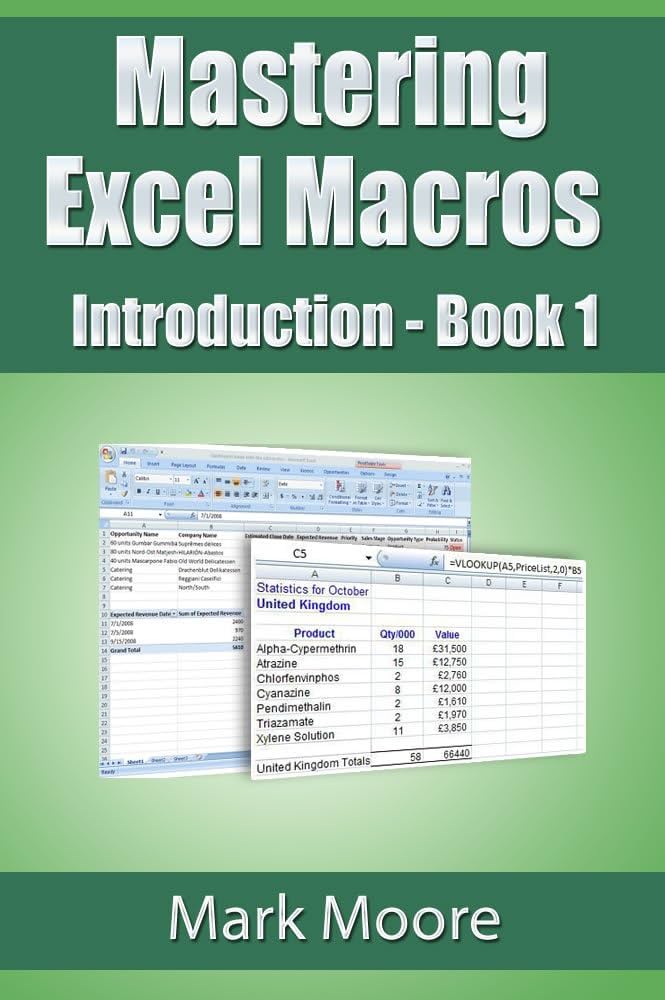
Microsoft Excel is a ubiquitous tool in Australian workplaces, from small businesses to large corporations. Its power is significantly amplified by the use of macros, automated sequences of commands that streamline repetitive tasks. This comprehensive guide will equip you with the knowledge and skills to effectively create, manage, and utilise macros, transforming your Excel workflow and boosting productivity. Well cover everything from the fundamental steps of how to create a macro in Excel to more advanced techniques, ensuring you can harness the full potential of this powerful feature, regardless of whether youre working on a Mac or a Windows machine. We will address common issues and concerns, ensuring a smooth transition to more efficient Excel usage.
Table
Understanding and Creating Excel Macros
Before diving into the specifics of how to do macros in excel, lets establish a foundational understanding. A macro is essentially a recorded sequence of actions in Excel. You can record a macro to automate tasks such as formatting cells, creating charts, or performing complex calculations. Once recorded, you can run this macro whenever needed, saving significant time and effort. This ability to automate repetitive tasks is a game-changer for productivity, particularly for those working with large datasets or performing regular reporting. How do I create a macro in Excel? The process is surprisingly straightforward. Excels macro recorder allows for a simple, step-by-step approach to building your automated tasks. To start, youll need to enable the Developer tab in Excel, ensuring youre ready to begin recording your first macro.
Enabling the Developer Tab
The first step in learning how to create a macro for excel is to ensure the Developer tab is visible in your Excel ribbon. This tab houses the macro recording tools and other VBA (Visual Basic for Applications) functionalities. If you dont see the Developer tab, youll need to enable it through Excel's options. The exact steps might differ slightly depending on your Excel version, but generally involve accessing the File menu, then Options, and customizing the ribbon to include the Developer tab. This initial setup is crucial before you can even begin to explore how to add macros in excel.
Recording Your First Macro
Once the Developer tab is enabled, you can start recording your first macro. This involves clicking the Record Macro button and giving your macro a descriptive name. How do I make a macro in excel? It’s as simple as performing the desired actions in Excel, exactly as you would manually. Excel will then record each step, translating your actions into VBA code. This code forms the core of your macro. After completing the actions, stop the recording. You'll now have a functional macro ready to be executed. Understanding this basic recording process is fundamental to mastering how to create a macro in excel.
While you can run macros directly from the Developer tab, assigning them to buttons significantly improves usability. This adds a visual element, making it easier to execute your macros. How do you create a macro button in excel? It is simple: Create a button using the Developer tab's form controls. Then, assign your recorded macro to that button. Now, with a single click, you can trigger your automated task. Learning how to assign a button to a macro in excel elevates your macro usage to a more user-friendly level. This method is highly efficient, especially when sharing workbooks or dealing with frequent macro execution.
Saving and Managing Your Macros
Its crucial to save your Excel workbook in a format that preserves your macros. How to save excel as xlsx on mac or Windows is vital for maintaining your automated tasks. Excel workbooks saved as .xlsm files retain VBA macros. Its advisable to regularly save your progress to avoid losing your hard work. Good macro management also involves giving your macros descriptive names for easy identification and organisation. Well-named macros make it simpler to manage and maintain your collection of automated tasks, streamlining the overall workflow, particularly for extensive projects.
Advanced Macro Techniques and VBA
While the macro recorder is excellent for simple tasks, truly mastering how to use macros in excel requires understanding VBA. VBA allows you to write custom macros, providing far greater flexibility and control than the simple recording function. This level of customization allows for the creation of extremely powerful and sophisticated automated workflows. How to write macros in excel using VBA requires learning the language's syntax and commands, but the results are worth the effort. The ability to craft custom solutions tailored to your specific needs is a key advantage.
Working with VBA Code
How do macros work in excel? At their core, macros are essentially scripts written in VBA. When you record a macro, Excel generates this code automatically, but you can edit and refine this code to customise your automated actions. This allows for greater control and efficiency. Understanding VBA opens the door to creating sophisticated macros that would be impossible to achieve through recording alone. This deep dive into the underlying code gives users ultimate control over their Excel automation strategies.
Debugging VBA Code
Like any programming, VBA code can contain errors. How to debug an excel macro is a crucial skill for anyone working with VBA. Excel provides debugging tools to identify and fix errors. These tools allow for step-by-step execution of the code, identifying the source of the problem. How to check macro code in excel involves inspecting the generated code, verifying its logic and troubleshooting any issues. Mastering debugging is essential for creating robust and reliable macros. Efficient debugging practices greatly reduce the likelihood of errors and unexpected outcomes.
Looping and Conditional Statements
To create truly powerful and adaptable macros, you’ll need to utilize VBAs looping and conditional statements. These features enable your macros to perform repeated actions or make decisions based on data. This level of control enhances the macros adaptability and automation potential. For example, using loops, you could automate tasks across hundreds of rows of data. Conditional statements allow your macro to handle varied situations, making it far more robust.
Working with Excel Objects
VBA allows you to interact directly with Excel objects, such as worksheets, cells, and charts. Understanding how to use an excel macro to manipulate these objects is critical for creating sophisticated automation. This object manipulation allows for dynamic control of the workbook environment. This interaction enables the creation of dynamic workflows, significantly expanding the possibilities of macro automation.
Troubleshooting and FAQs
Despite the seemingly straightforward nature of macro creation, several issues can arise. This section addresses common problems and provides solutions for a smoother experience when learning how to do excel macros. Whether you're facing compatibility issues or struggling with specific functions, this section offers helpful guidance.
Mac-Specific Issues
Do excel macros work on mac? Absolutely! Excel for Mac supports macros and VBA just like the Windows version, although there may be minor differences in the interface and certain functions. However, issues may arise concerning the default application setting. How to change default to excel on mac is a common question and is easily addressed within the system settings. Sometimes, incompatibility issues with third-party add-ins might appear; however these are typically resolved through updates and careful management of add-ins.
Online Excel and Macro Compatibility
Do macros work in excel online? Currently, Excel Online does not fully support macros in the same way as the desktop applications. This limitation is important to bear in mind when working with online versions of Excel. Does excel online support macros? This feature is not fully available, and it's best practice to use the desktop application for creating and running complex macros. For simple macros, however, you may find some functionality.
Do excel macros work in sharepoint? The functionality of macros within SharePoint depends on the specific SharePoint configuration. Many SharePoint environments have restrictions on macro execution for security reasons. This requires careful consideration of security policies when working in shared environments. Therefore, it’s crucial to understand the limitations and security settings before utilising macros within SharePoint environments.
- How much does excel cost for mac? The cost varies depending on the license type (one-time purchase or subscription) and the specific version of Microsoft 365. It is best to check the Microsoft website for the most up-to-date pricing.
- Does Microsoft Excel work on Mac? Yes, Microsoft Excel is available for both macOS and Windows operating systems.
- How to update excel on a mac? Updating Excel on a Mac depends on how you're using Excel. If you have a Microsoft 365 subscription, updates typically happen automatically. If you have a one-time purchased version, updates are usually handled through the Microsoft AutoUpdate application.
- Cant save excel on mac? If you cant save an Excel file on your Mac, check your file permissions, ensure you have sufficient disk space, and try saving the file to a different location. Also check for any issues with the file itself.
- How do I get excel on my mac? You can get Excel for Mac by purchasing a standalone license or subscribing to Microsoft 365. The Microsoft website provides details on obtaining the software.
Mastering Excel macros significantly enhances productivity and streamlines workflow. By understanding the fundamentals of macro recording, venturing into VBA programming, and addressing potential compatibility concerns, you can effectively leverage the power of automation. Remember to regularly save your work and explore the extensive online resources available to continue your journey into advanced Excel macro usage.
This video might interest you: give it a watch
Unlocking Excel's Power: A Comprehensive Guide to Macros and More

Recover Hidden Data: Mastering Excel Column Management Techniques

Mastering Checkboxes in Microsoft Excel: A Comprehensive Guide

Mastering the Art of Adding Signatures in Microsoft Excel: A Comprehensive Guide

Mastering Excel Links: A Comprehensive Guide to Linking and Managing Data

Mastering Page Breaks and Layout in Microsoft Excel: A Comprehensive Guide
Leave a Reply
Contenido relacionado