

Mastering Column Manipulation in Microsoft Excel: A Comprehensive Guide
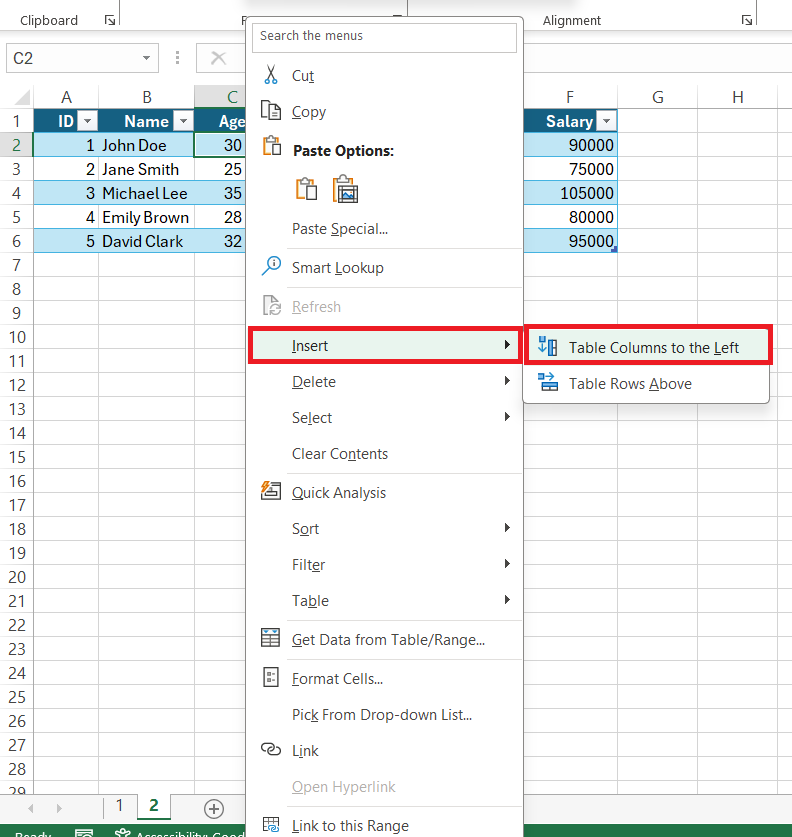
Microsoft Excel is a cornerstone of productivity for many, but navigating its intricacies can sometimes feel like deciphering an ancient scroll. This comprehensive guide unravels the mysteries surrounding column manipulation, addressing common queries such as how to change row data to column in excel, how to swap columns in excel, and even how to adjust row and column dimensions effectively. Well explore various techniques, from simple column shifts to more complex data transformations, equipping you with the skills to efficiently manage and analyze your spreadsheets. Understanding these techniques is crucial for streamlining your workflow and extracting maximum value from your Excel data. Whether youre a novice or an experienced user, this guide will provide valuable insights and practical solutions to enhance your Excel proficiency.
Table
Understanding Basic Column Manipulation: Shifting and Swapping
One of the most frequent needs in Excel is to rearrange columns. This involves moving columns around within your spreadsheet. The method for how to shift columns in excel is straightforward. Simply select the column header you want to move. Then, hover your mouse over the selected column's border until the cursor changes to a four-headed arrow. Click and drag the column header to its desired new location. The same method can be employed for understanding how to swap columns in excel. This is particularly useful for reorganising data for better readability or analysis. For instance, you might want to move a column containing sales figures to the forefront for quick review or to place related columns adjacent to each other for better data visualization. Understanding how to swap columns in excel efficiently saves time and improves the overall efficiency of your data analysis process. Learning how to switch columns in excel smoothly is an essential skill for any Excel user.
Moving Single Columns
Moving a single column is a fundamental operation. Select the column header you want to move. Next, hover your mouse over the border until you see the four-headed arrow. Then, click and drag the column to its new position. This addresses the basic question of how to shift a column to row in excel, although in this context, we are shifting only within columns. Reordering columns this way helps to arrange the worksheet logically for better report generation or analysis. This is a quick and efficient way to change the column order in excel.
Moving Multiple Columns
Moving multiple columns is equally straightforward. Select the column headers of the columns you wish to move. With all headers selected, hover your mouse over the border of the selected columns. Again, you'll see the four-headed arrow; click and drag to the new position. This is an important aspect of understanding how to change columns in excel, and it directly relates to how to change column order in excel or how to change column position in excel.
Swapping Columns
Swapping columns is a quick way to rearrange the order. Select the first column. Then, hold down the Ctrl key and select the second column you want to swap. Now, drag one of the selected columns to where the other should be. Excel will automatically swap their positions, providing a fast solution to how do you swap columns in excel. This technique is particularly useful when working with large datasets where manually reorganising data would be time-consuming.
Using the Cut and Paste Method
The traditional cut and paste method remains a robust way to move columns. Select the column, then use the Cut command (Ctrl+X). Now, select the destination column (or insert a new column if necessary) and use the Paste command (Ctrl+V) to place the column in its new location. This also answers the query of how to shift columns to rows in excel if you paste into a different row.
Advanced Column Transformations: Rows to Columns and Vice Versa
Beyond simple column movement, Excel allows for more complex transformations. Frequently, users need to convert row data into columns, or columns into rows. This data restructuring is crucial for various analyses and reports. Learning how to convert rows to columns in excel is a powerful skill that allows for a more efficient organisation of information. This is directly related to the question, how do i change rows to columns in excel, and significantly simplifies the process of data manipulation and analysis. Knowing the techniques involved in converting a row to column in excel is crucial for anyone working extensively with spreadsheets.
Transposing Data: Rows to Columns
The TRANSPOSE function is the key to efficiently converting rows to columns or vice versa. This function is a core aspect of understanding how to change row data to column in excel. Select a range of empty cells where you want the transposed data to appear. Then, type =TRANSPOSE(, select the range of cells containing the data you want to transpose, and close the parenthesis with ). Press Ctrl+Shift+Enter to enter this as an array formula. This effectively addresses how to convert rows to columns in excel and other similar queries.
Using the Paste Special Function
The Paste Special function offers another method for how to convert a row to column in excel. Copy the data from the row. Select the cell where you want the transposed data to start. Right-click and select Paste Special. Then, check the Transpose box and click OK. This achieves the same result as the TRANSPOSE function but provides a more visual and possibly more easily understood method for some users.
Restructuring Data for Analysis
Often, data needs to be restructured to facilitate specific analyses. Understanding how to convert column data to row data in excel is crucial. This often involves using the TRANSPOSE function or Paste Special to rearrange the data. For example, if you have sales data organized by product in columns, you might want to transpose it to organize by month in columns to create a comparative analysis. Therefore, understanding how to change excel data from row to column is vital. These changes significantly improve the readability and utility of your data.
Handling Large Datasets
When dealing with extensive datasets, using the TRANSPOSE function or Paste Special in conjunction with VBA (Visual Basic for Applications) macros can significantly automate the process, answering the query of how to change excel columns to rows efficiently for large-scale data management.
Adjusting Column and Row Dimensions: Height and Width
Effective data presentation often requires adjusting column widths and row heights. This ensures proper readability and prevents data truncation or overlapping. Knowing how to change column width in excel and how to change row height in excel contributes significantly to creating well-formatted and easy-to-understand spreadsheets. Understanding how to adjust rows and columns in excel is essential for presenting data professionally. Incorrect dimensions may lead to poorly presented data which is difficult to read.
Adjusting Column Width
To change the width of a column, hover your mouse over the right border of the column header until the cursor becomes a double-headed arrow. Click and drag to adjust the width. Alternatively, you can double-click the border between column headers to automatically adjust the width to fit the widest entry in that column. This addresses how to change the width of a column in excel and how do you change the column width in excel efficiently.
Adjusting Row Height
Similarly, you can adjust row height by hovering over the bottom border of the row header. This will change the cursor to a double-headed arrow. Click and drag to adjust the height. You can also double-click the border between row headers to automatically adjust the height to fit the tallest entry in the row. This is the answer to how do i change row height in excel and how to change excel row height.
Setting Custom Dimensions
For more precise control, you can manually set dimensions. Select the columns or rows. Right-click and select Row Height or Column Width. Enter the desired value and click OK. This allows for consistent formatting across your entire worksheet addressing how to change all column widths in excel or how to change all row heights in excel for uniform presentation.
The Format menu provides another route to changing dimensions. Select the columns or rows you want to modify, go to the Home tab, and find the Format option under Cells. Here, you can adjust the width and height to custom values. This provides another option for how to change column size in excel and how to change row size in excel for a more precise and controlled formatting approach.
Mastering these techniques significantly enhances your Excel skills, enabling you to manipulate and present data effectively. From simple column shifts to complex data transpositions, the methods outlined here provide a strong foundation for tackling a wide range of spreadsheet tasks. Remember, practice makes perfect! Experiment with these techniques to become confident in navigating and manipulating your Excel data.
This video might interest you: give it a watch
Mastering Excel File Size Reduction: Practical Strategies for Smaller, Faster Spreadsheets

Mastering Watermarks in Excel: A Comprehensive Guide

Secure Your Excel Files: A Comprehensive Guide to Password Protection and Removal

Mastering Excel: A Comprehensive Guide to Essential Functions and Techniques

Unlocking Excel's Power: A Comprehensive Guide to Macros and More

Recover Hidden Data: Mastering Excel Column Management Techniques
Leave a Reply
Contenido relacionado