

Mastering Excel: Your Comprehensive Guide to Calculating Averages
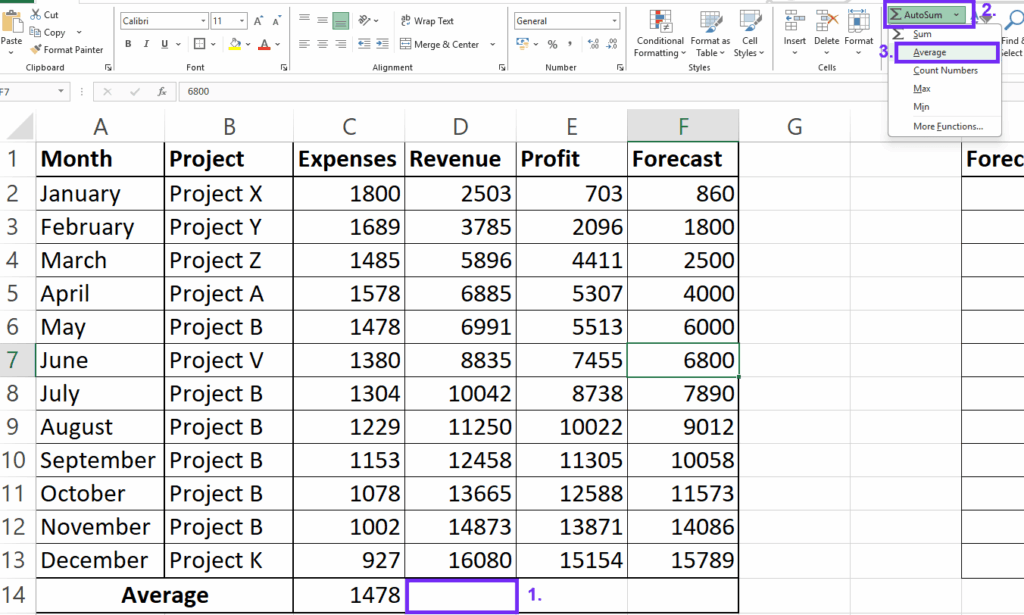
Microsoft Excel is a powerful tool for data analysis, and understanding how to calculate various types of averages is crucial for many tasks. This comprehensive guide will walk you through different methods for calculating averages in Excel, from simple means to more complex calculations like weighted averages and rolling averages. Well cover how to calculate the mean, median, and mode, and also address how to handle specific scenarios like excluding zero values or working with filtered data. Whether youre calculating the average score on a test, the average sales figures for a quarter, or the average tenure of employees, this guide provides the knowledge and formulas you need to succeed. This guide will help you master techniques such as how to calculate average using excel and how to calculate average in excel formula for a wide range of applications.
Table
Calculating Simple Averages in Excel
The most common type of average is the arithmetic mean, often simply referred to as the average. Learning how to calculate average in excel is fundamental. This section will show you how to compute average in excel for single columns and multiple columns of data. To find the average of a range of cells, you use the AVERAGE function. For example, to calculate the average of numbers in cells A1 to A10, the formula would be =AVERAGE(A1:A10). This is the answer to how do you calculate an average in excel?. This simple function readily answers questions like how do i calculate average in excel or how to calculate average in excel sheet.
Calculating the Average of a Single Column
Lets say you have a column of sales figures (Column B), and you want to determine the average sales. Simply select an empty cell, type =AVERAGE(B1:B10) (assuming your sales data is in cells B1 to B10), and press Enter. Excel will automatically calculate and display the average. This is a direct answer to how to calculate average of a column in excel. Understanding this basic function is crucial before moving to more complex calculations; its the foundation of learning how to calculate average using excel.
Calculating the Average of Multiple Columns
Calculating the average across multiple columns is equally straightforward. Suppose you want the average sales for each day of the week, with sales data for Monday through Friday in columns B to F. To calculate the average sales across all five days, enter =AVERAGE(B1:F10) (again, assuming your data spans rows 1 to 10). This directly responds to how to calculate average in excel for multiple columns and demonstrates a more advanced application of how to calculate average in excel formula.
How to Calculate Average of Cells in Excel with Specific Criteria
Sometimes, you need to calculate an average based on specific criteria. For instance, you might want the average sales only for a certain product category. This requires the AVERAGEIF function. The syntax is AVERAGEIF(range, criteria, [average_range]). For example, =AVERAGEIF(A1:A10,Product X,B1:B10) calculates the average sales for Product X where Column A contains product names and Column B contains sales figures. This answers how to calculate average if in excel effectively.
Understanding Average vs. Mean in Excel
While often used interchangeably, the terms average and mean are synonymous in the context of Excel's AVERAGE function. The function calculates the arithmetic mean – the sum of the numbers divided by the count of numbers. Understanding this clarifies inquiries such as how do you calculate the mean in excel or how to calculate a mean on excel. The answer is simple: use the AVERAGE function.
Advanced Average Calculations in Excel: Median, Mode and Weighted Averages
Beyond the simple average, Excel offers functions for calculating other measures of central tendency, like the median and mode, as well as more complex averages such as weighted averages. Knowing how to calculate these provides a more comprehensive understanding of your data. This section addresses questions like how to calculate median in excel, how to calculate mean median and mode in excel, and how to calculate weighted average in excel.
Calculating the Median in Excel
The median is the middle value in a dataset when its sorted. Excels MEDIAN function easily calculates this. The syntax is simply =MEDIAN(range). For example, =MEDIAN(A1:A10) will find the median of the numbers in cells A1 to A10. This addresses how to calculate median excel and how do you calculate median in excel directly.
Calculating the Mode in Excel
The mode is the most frequent value in a dataset. The MODE function finds this. The syntax is =MODE(range). For instance, =MODE(A1:A10) determines the mode of the numbers in cells A1 to A10. This clearly answers how to calculate mean median and mode in excel in part, providing the method for determining the mode.
Calculating Weighted Averages in Excel
A weighted average assigns different weights to different values. This is useful when some values contribute more significantly than others. The formula requires you to multiply each value by its corresponding weight, sum the results, and then divide by the sum of the weights. This addresses how to calculate weighted average in excel and how do i calculate weighted average in excel. You can easily create this calculation using the SUMPRODUCT and SUM functions; for example: =SUMPRODUCT(A1:A10,B1:B10)/SUM(B1:B10), where column A contains values and column B contains their corresponding weights. This method answers how do you calculate a weighted average in excel efficiently.
How to Calculate Mean, Median, and Mode Simultaneously
While each measure of central tendency (mean, median, mode) requires its own function, you can easily calculate all three in separate cells to get a comprehensive picture of your data's central tendency. This approach directly addresses how to calculate the mean median and mode in excel by showing how to apply the separate functions (AVERAGE, MEDIAN, MODE) in a coordinated way for a full analysis.
Handling Specific Scenarios When Calculating Averages in Excel
Real-world data often presents challenges. This section demonstrates how to address common scenarios, answering questions like how to calculate average excluding zero values excel, how to calculate average in excel excluding blank cells, and how to calculate average in excel with filtered data.
Calculating Averages Excluding Zeros
Zero values can skew average calculations. To exclude them, you can use the AVERAGEIF function. The formula =AVERAGEIF(A1:A10,<>0) calculates the average of the range A1:A10, excluding any cells containing zero. This method directly answers how to calculate average excluding zero in excel and how to calculate average ignoring zero values excel. This is crucial for many datasets, showing a practical solution to how to calculate average in excel excluding zeros.
Calculating Averages Excluding Blank Cells
Similar to excluding zeros, blank cells can also distort averages. The AVERAGE function automatically ignores blank cells. If you need to explicitly exclude cells containing specific text, use AVERAGEIF with appropriate criteria. For example, =AVERAGEIF(A1:A10,<>N/A) calculates the average while excluding cells with N/A. This solves the query how to calculate average in excel excluding blank cells and offers a clear solution for other criteria too.
Calculating Averages with Filtered Data
When working with filtered data, a simple AVERAGE function will include hidden rows. To calculate the average of only visible cells after filtering, you'll need to use the SUBTOTAL function. The formula =SUBTOTAL(1,A1:A10) calculates the average of only visible cells in the range A1:A10. This directly answers how to calculate average in excel with filtered data showing a practical approach for handling filtered datasets.
Calculating Rolling or Moving Averages
A rolling average calculates the average over a specific period, moving across your data. For instance, a 3-month rolling average calculates the average for each consecutive three-month period. This typically involves using the AVERAGE function and adjusting cell references in each row for the calculation. This directly addresses queries like how to calculate 3 month average in excel and how to calculate a rolling average in excel, how to calculate a running average in excel, and how to calculate moving average excel. More complex solutions might involve using array formulas or VBA for more efficient calculations.
Calculating Average Percentage in Excel
Calculating the average percentage in Excel is straightforward. If you have a column of percentages, simply use the AVERAGE function as usual. Excel correctly interprets and calculates the average of those percentages. This directly answers how to calculate the average percentage in excel and how to calculate average percentage in excel, removing any confusion surrounding the process.
Mastering these techniques empowers you to handle a wide variety of data analysis tasks in Excel, ensuring accurate and insightful results. From simple averages to complex weighted calculations and dealing with various data irregularities, the functions discussed here equip you to tackle any average calculation with confidence. Remember to always check your data and formula to ensure accuracy, and practice regularly to build proficiency.
This video might interest you: give it a watch
Mastering Excel: A Comprehensive Guide to Essential Functions and Techniques

Unlocking Excel's Power: A Comprehensive Guide to Macros and More

Recover Hidden Data: Mastering Excel Column Management Techniques

Mastering Checkboxes in Microsoft Excel: A Comprehensive Guide

Mastering the Art of Adding Signatures in Microsoft Excel: A Comprehensive Guide

Mastering Excel Links: A Comprehensive Guide to Linking and Managing Data
Leave a Reply
Contenido relacionado